
Contact Record - Contact Details
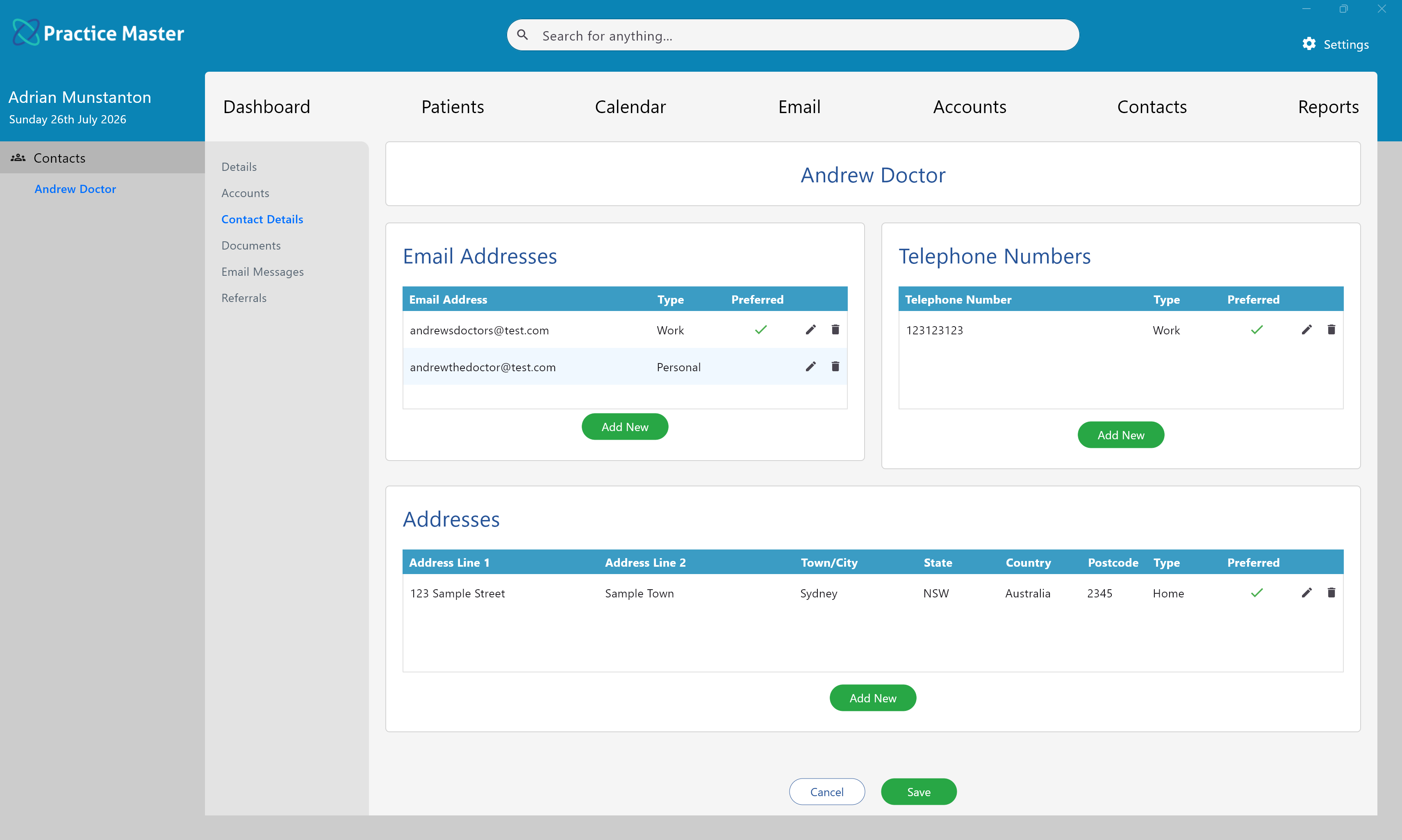
Maintain multiple email addresses, telephone numbers and postal addresses for the contact, and choose which details are used by default.
Key Activities
- Store multiple email addresses, telephone numbers and addresses for each contact.
- Mark one entry in each section as the preferred contact detail.
- Preferred contact details are used automatically when creating correspondence.
- Edit or remove individual contact details at any time.
- Each contact detail can be categorised by type, such as Home, Work or Mobile.
Overview
The Contact Details tab allows multiple methods of contacting a contact to be recorded. Rather than limiting each contact to a single email address, telephone number or postal address, Practice Master allows as many contact details as required.
One entry within each section can be marked as the Preferred contact detail. Preferred details are used automatically when generating documents, composing emails, sending SMS messages and throughout other areas of Practice Master.
Common Tasks
The following common tasks can help you get the most out of this screen:
Add a new email address
- Click Add New beneath the Email Addresses list.
- Enter the email address and select its type.
- Optionally mark it as the preferred email address.
- Save the changes.
Add a telephone number
- Click Add New beneath the Telephone Numbers list.
- Enter the telephone number.
- Select its type (such as Mobile, Home or Work).
- Optionally make it the preferred number.
Add a postal address
- Click Add New beneath the Addresses list.
- Enter the address details.
- Select the address type.
- Optionally mark it as the preferred address.
Update an existing contact detail
- Click the Edit icon beside the required record.
- Make the required changes.
- Save the record.
Screen Reference
A detailed description of various screen elements:
Contact Navigation
Select Contact Details from the navigation panel to manage the contact's email addresses, telephone numbers and postal addresses.
Email Addresses
Stores one or more email addresses for the contact.
Each email address can be assigned a type, such as Personal or Work, allowing multiple addresses to be maintained.
Telephone Numbers
Stores all telephone numbers associated with the contact, including mobile, home and work numbers.
Each number can be assigned an appropriate type for easy identification.
Addresses
Stores one or more postal addresses for the contact.
This allows home, work, postal or other addresses to be maintained while keeping a single preferred mailing address.
Preferred Contact Details
- Generating letters and other documents.
- Creating emails addressed to the contact.
- Sending SMS reminders and other text messages.
- Displaying default contact information throughout the application.
One email address, one telephone number and one address can be marked as Preferred.
Preferred contact details are used automatically throughout Practice Master, including:
Edit
Opens the selected email address, telephone number or postal address so it can be updated.
Delete
Removes the selected contact detail from the contact's record.
Add New
Creates a new email address, telephone number or postal address within the selected section.
Save
Saves all changes made to the contact's contact details.
Cancel
Closes the Contact Record without saving any unsaved changes.