
New Contact
Create a new professional contact such as a practitioner, specialist, supplier, company or other organisation used throughout Practice Master.
Key Activities
- Create either an individual person or a company.
- Store contact, address and provider information.
- Assign one or more modalities (disciplines) to each contact.
- Contacts can later be used for referrals, invoices, appointments, correspondence and document generation.
- Company contacts can include multiple named contact people.
Overview
The New Contact screen is used to add professional contacts that your practice interacts with, including practitioners, specialists, allied health professionals, suppliers, laboratories, employers, insurers and other organisations.
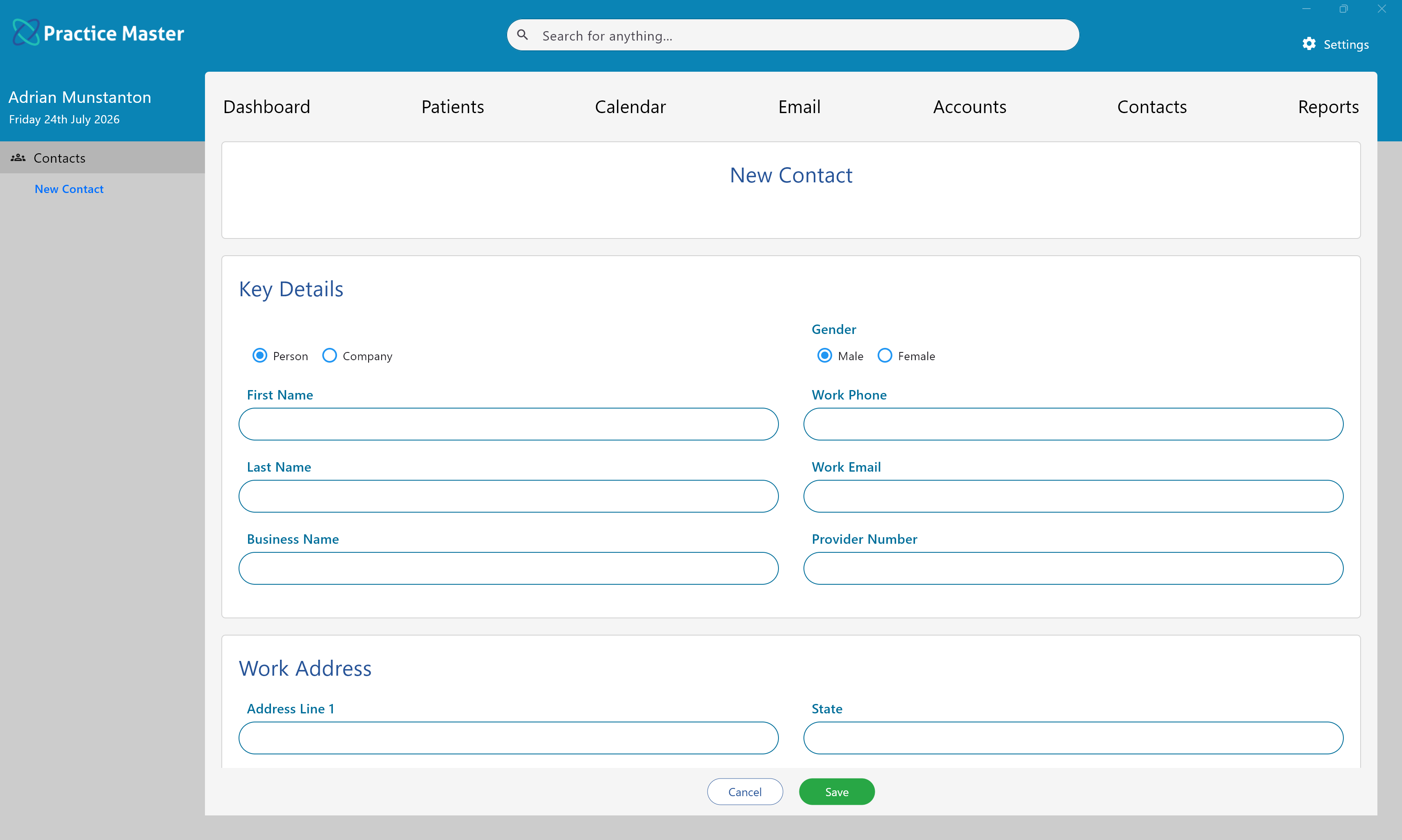
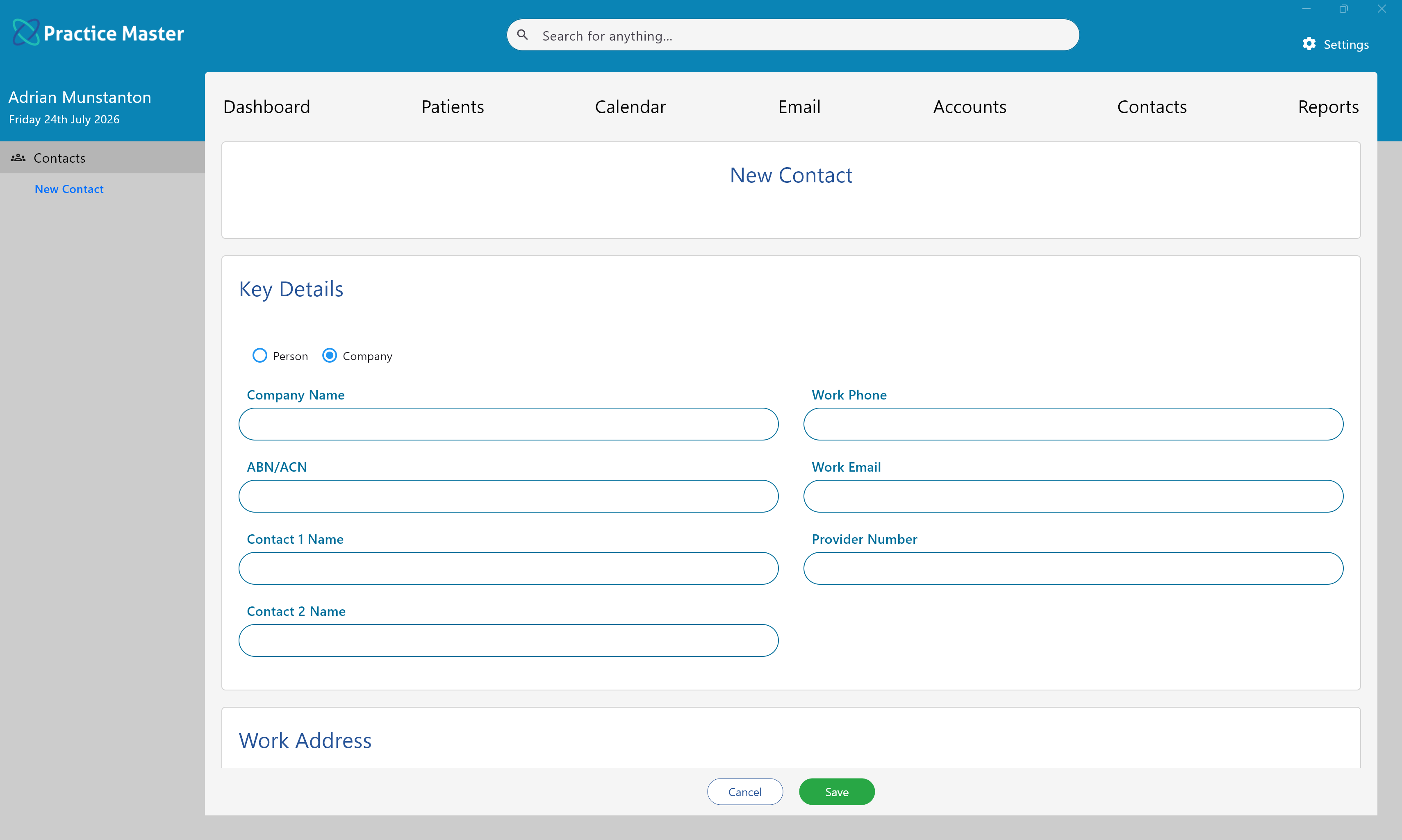
A contact may represent either an individual person or a company. Selecting the appropriate option automatically adjusts the information requested.
Once created, contacts become available throughout Practice Master when creating referrals, invoices, appointments, document templates and correspondence.
Common Tasks
The following common tasks can help you get the most out of this screen:
Create a person
- Select Person.
- Enter the person's name and contact details.
- Specify one or more modalities if required.
- Click Save.
Create a company
- Select Company.
- Enter the company details.
- Optionally enter one or more contact people.
- Specify any modalities or provider information.
- Click Save.
Screen Reference
A detailed description of various screen elements:
Person / Company
Determines whether the contact represents an individual or an organisation. The available fields automatically change to suit the selected contact type.
Key Details
Records the contact's primary information including names, telephone numbers, email addresses and provider number where applicable.
Modalities / Disciplines
One or more modalities can be assigned to each contact to describe the services they provide, such as GP, Naturopath, Osteopath, Psychologist or Massage Therapist.
Assigned modalities are displayed throughout Practice Master and can be searched and filtered from the Contacts list.
Provider Number
Stores the practitioner's provider number for future reference and document generation.
Work Address
Records the primary business address used for referrals, printed documents and correspondence.
Contact People
Company contacts can store multiple named contact people, making it easy to identify who should receive referrals or correspondence within an organisation.
Save
Creates the new contact, making it immediately available throughout Practice Master.
Tips
Helpful tips for this screen are below:
Assign modalities whenever possible
Modalities make contacts much easier to locate later. For example, assigning modalities such as GP, Naturopath, Psychologist or Massage Therapist allows contacts to be searched and filtered by discipline throughout Practice Master.
Use companies for larger organisations
Organisations such as hospitals, pathology providers, imaging centres and insurance companies are generally best entered as Company contacts, while individual practitioners should normally be entered as Person contacts.
Contacts are used throughout Practice Master
Once created, contacts can be selected when creating referrals, invoices, appointments, document templates and email correspondence, so entering complete contact information now reduces data entry later.